
A visit starts when you stay in one spot for a few minutes.
The visit radius is the size of that spot: how far you can move around before Places decides you have left.
The default is 100 meters, and it suits most people. Change it when visits keep splitting apart or blurring together.
Where to change it
1. Open the account menu with the button in the top right.
2. Scroll down past the main menu options until you see Tracking automatically, with the green dot. Tap it.
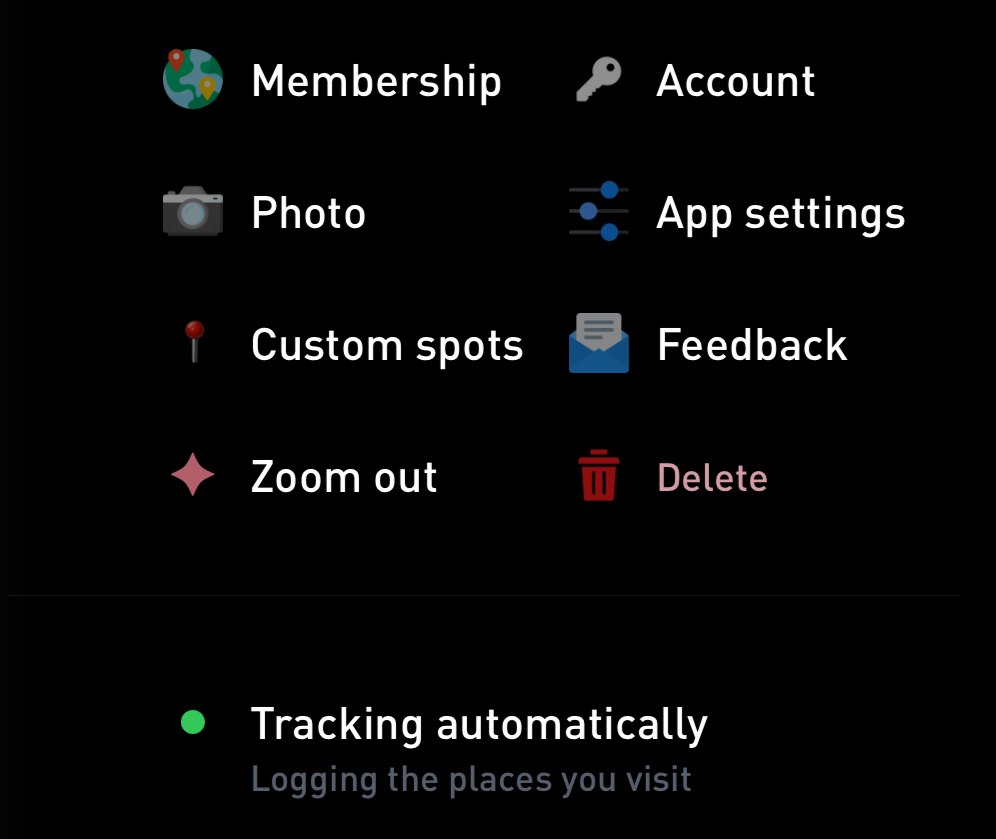
Below the main menu options, tap Tracking automatically (1).
3. The Places tracking screen opens. The top shows your permissions, the app status and a map of your GPS points from the last day.
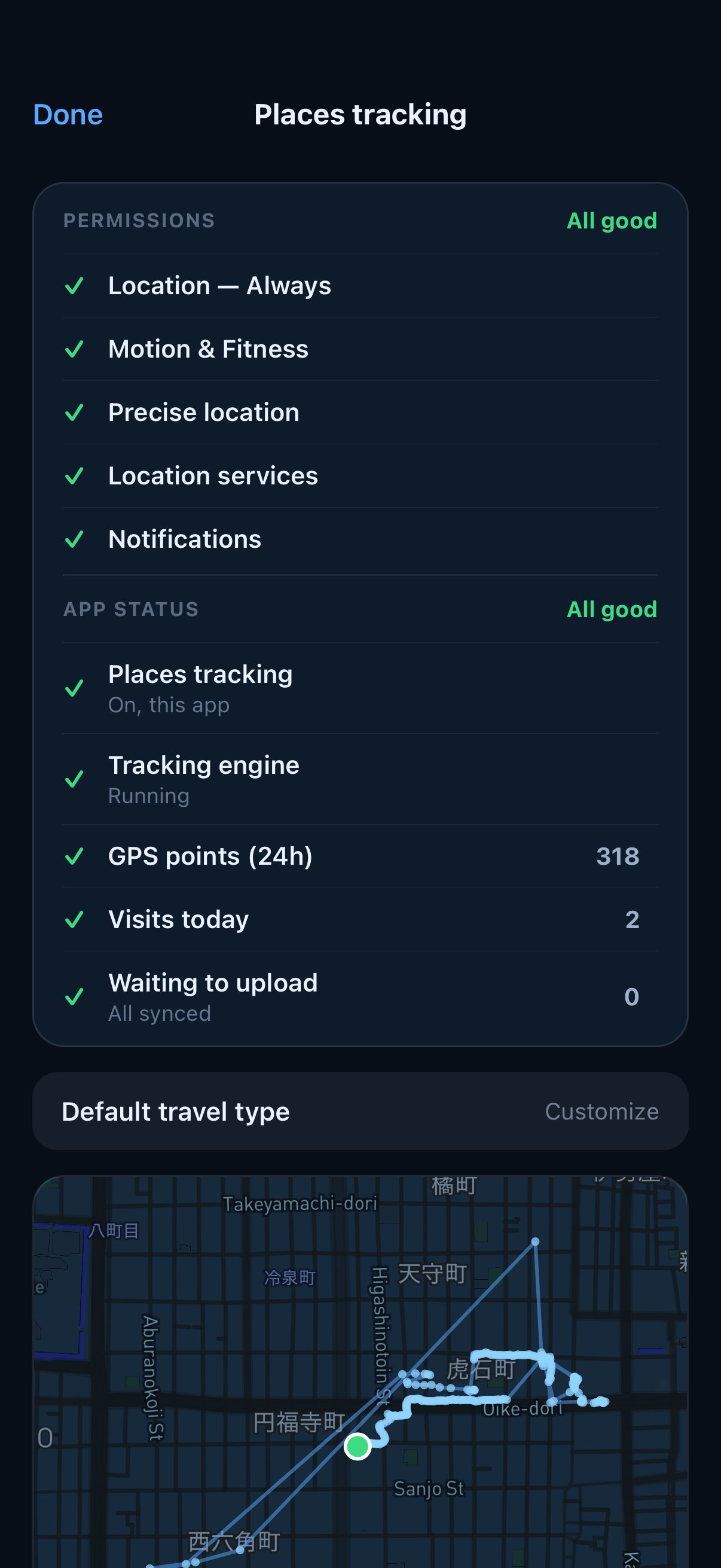
The top of the tracking settings.
If the menu row says Gyroscope Health is active, the Health app is doing the tracking and these settings live there. In Gyroscope Health, open Places and tap the gear to get to the same screen.
4. Scroll down to Visit radius. Tap a size, from 60m to 140m, then tap Apply.
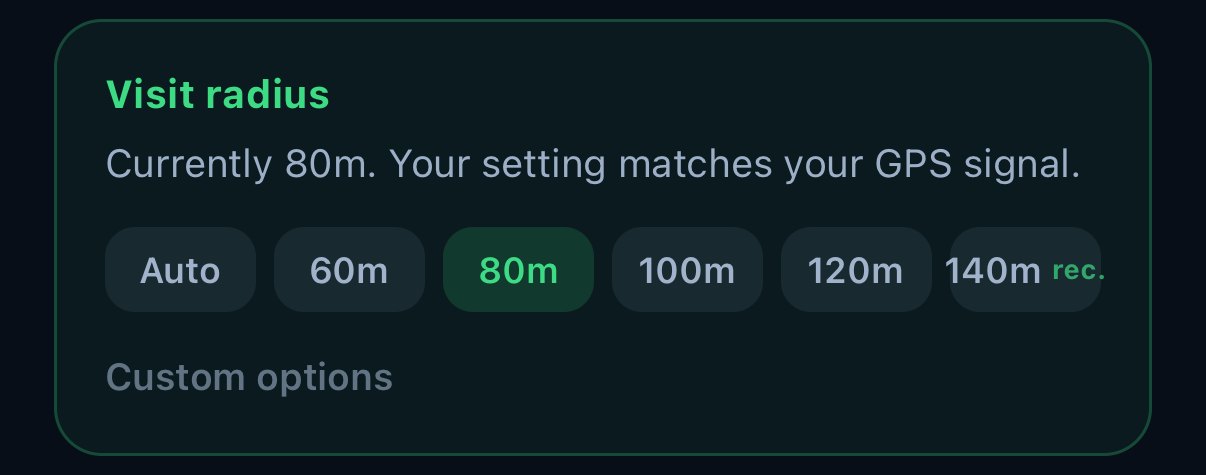
Tap a size (1). The one marked rec. is the suggested size.
The size marked rec. is the one Places suggests, based on how much your GPS signal wandered while you were standing still over the last day.
The card only shows in the app that is tracking. The tracking setup page explains how to check which one that is.
What the size changes
A smaller radius recognizes a new place sooner and notices when you leave sooner.
The catch is a jumpy GPS signal. With a small radius, one long stay can break into several short visits.
A larger radius holds a visit together through bad GPS, like inside a big building or a crowded downtown block.
The catch there is detail. Nearby places can blur into one visit, and departures show up a little later.
Where your phone thinks you are
Note this means where you went, but also where your phone thinks you went.
So if there is bad reception somewhere or low signal, then you may also want a large radius, i.e. if you are in a small New York apartment but it is in a basement and gets no GPS signal, then you may want to set a large radius.
Personal experimentation may be necessary here to try different radius and see what works best for your specific lifestyle, phone, and setup.
Even things like the weather and clouds blocking GPS can affect this, or which specific version of iOS you are on, the Wi-Fi signals near you, etc. all contribute to the tracking.
When to change it
- One stay shows up as several short visits. Try one step larger.
- Two places next door merge into one visit, or you leave later than you really did. Try one step smaller.
- Everything looks right. Leave it where it is.
Change one step at a time. After a change, the setting locks for about 10 minutes while Places tries the new size on real signal.
Auto
Auto adjusts the radius for you in small steps, based on your location history and GPS quality. It checks again when you open the tracking settings.
It is still experimental. Choosing a size yourself turns it off, and Turn off auto keeps the radius where it is.
Custom sizes
Custom options opens a few more sizes: 80m, 200m, 240m and 500m.
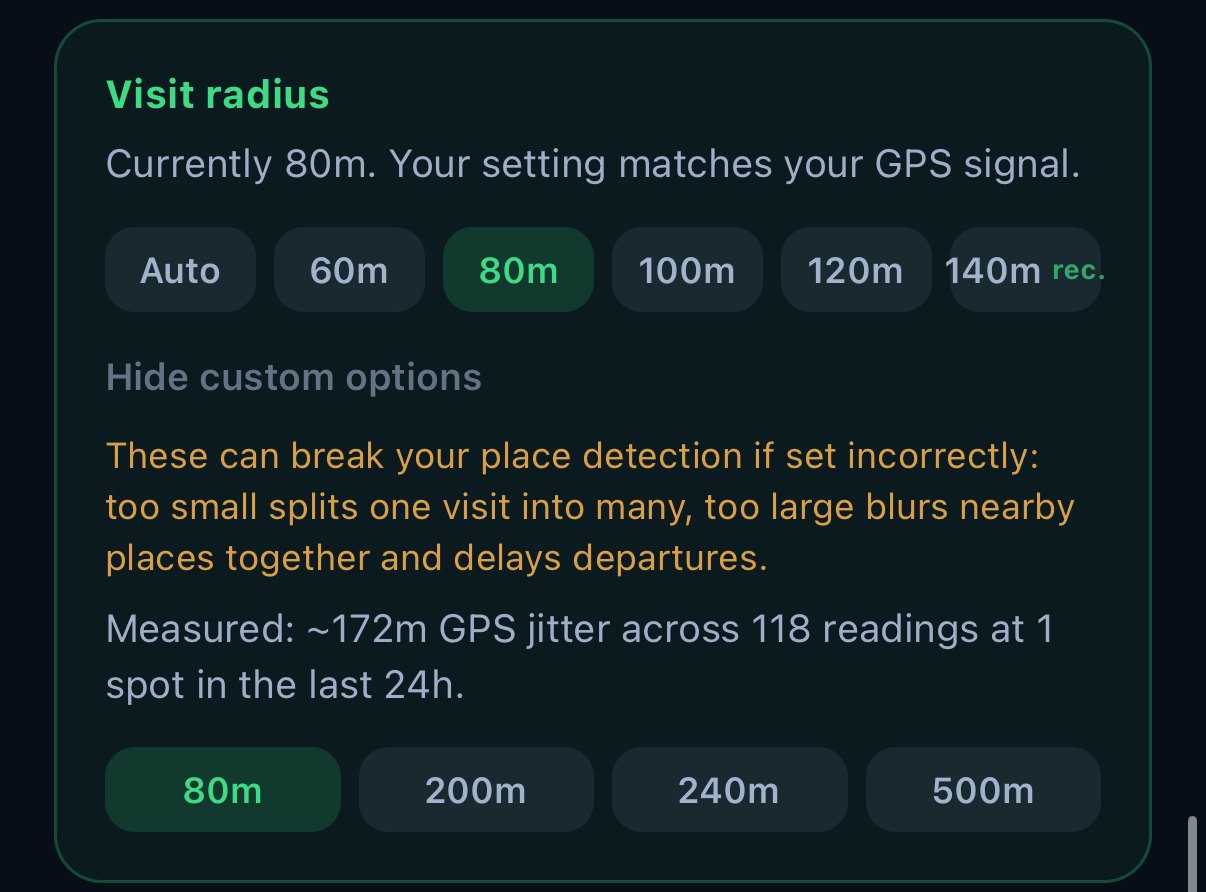
The measured GPS jitter helps you judge how large to go.
Use them with care. Too small splits one visit into many, and too large blurs nearby places together and delays departures.
What stays the same
Past visits keep their shape. A new radius applies to visits from the moment you change it.
Your named places stay the same too. The radius only decides when a visit starts and ends. Which place it belongs to is worked out separately.
To rebuild one of the last seven days with a different size, open a trip from that day, tap Edit this travel and choose Recalculate this day. It works on the phone that tracked that day.
The radius is saved on your phone. A new phone or a reinstall starts back at 100 meters.