
Sometimes a day comes out a little off. One long stay splits into several short visits, two places next door blur into one, or a stop lands on the wrong corner.
Recalculate this day rebuilds your visits and travels from the GPS trace your phone recorded. You pick the part of the day that looks wrong, compare a few versions of it and save the one that matches where you actually went.
It works for the last 7 days of history. That is how long the app keeps the raw GPS points on your phone, so check a day soon if something looks wrong.
Where to find it
There are two ways in.
From a visit. Open the visit that looks wrong and scroll down to Edit this visit. Tap Recalculate this day, and the editor opens with that visit already picked.
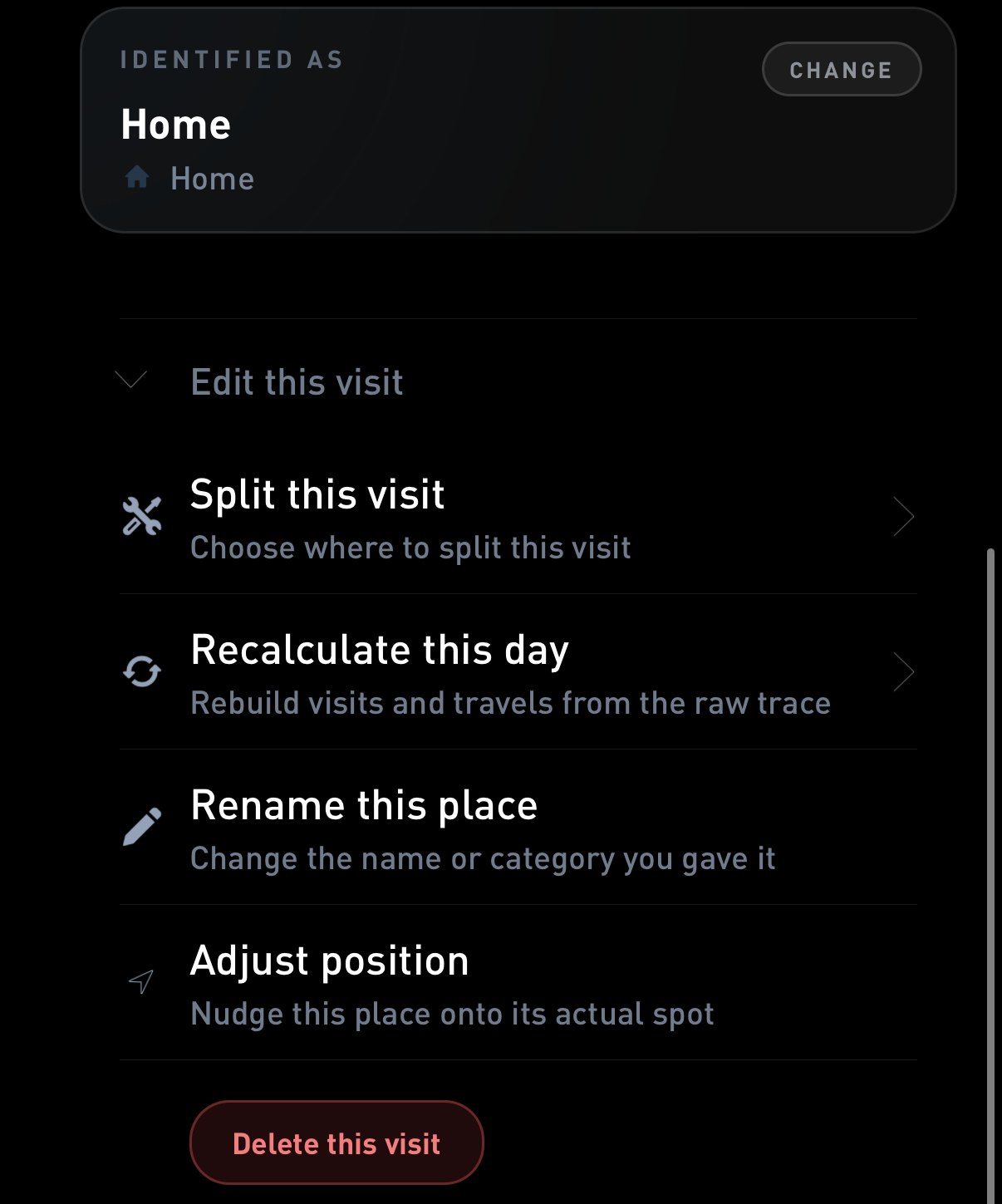
Scroll to Edit this visit (1) and tap Recalculate this day (2).
From the day. Open the day and scroll down to Edit this day, under the visits, trips and distance. Tap Recalculate this day to start from anywhere in the day.
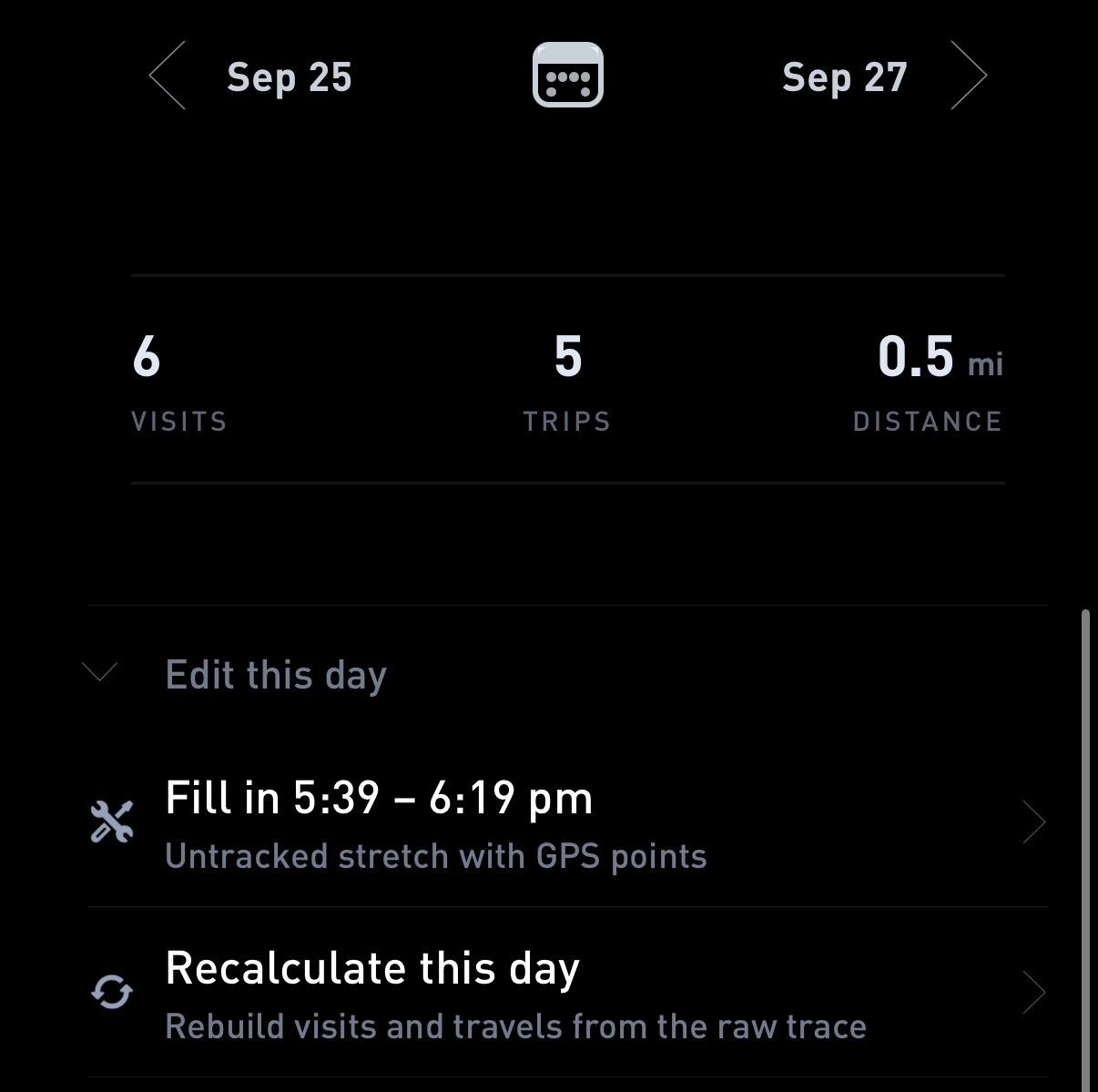
Edit this day (1), then Recalculate this day (2).
From a trip. Open the trip and scroll down to Edit this travel. Tap Recalculate this day to start with that trip picked.
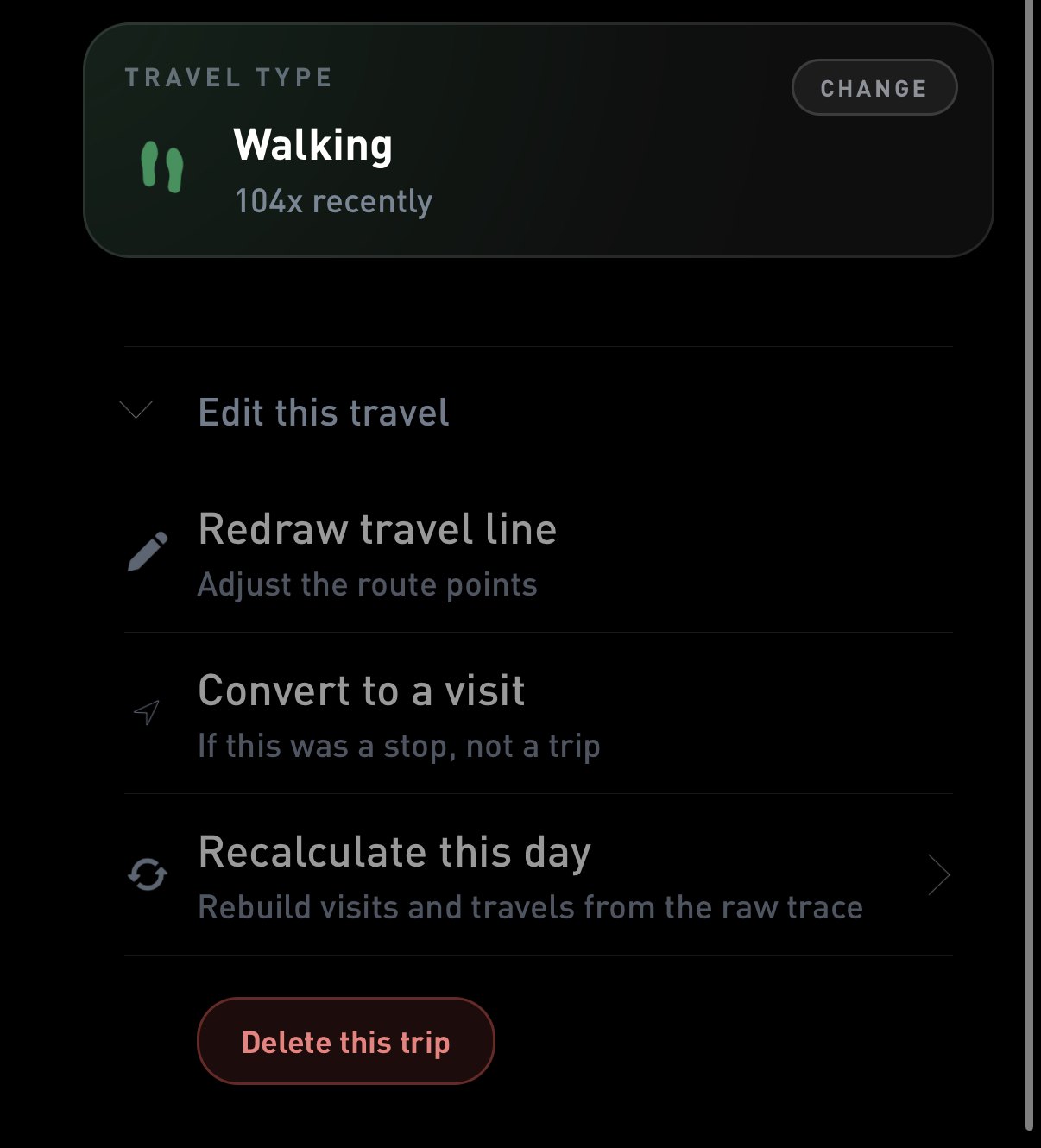
Edit this travel (1), then Recalculate this day (2).
Fill in and Fix
When Places finds a gap it can repair, the day shows a shortcut above Recalculate this day:
- Fill in appears when 10 minutes or more of your day has GPS points but no visit or travel.
- Fix appears when the GPS shows a trip away from a place you were logged at.
Both open the same editor with that stretch already picked.
Rebuilding the day
1. Pick the stretch. Tap where the wrong part starts and where it ends, then tap Edit at the bottom. Only that window gets rebuilt.
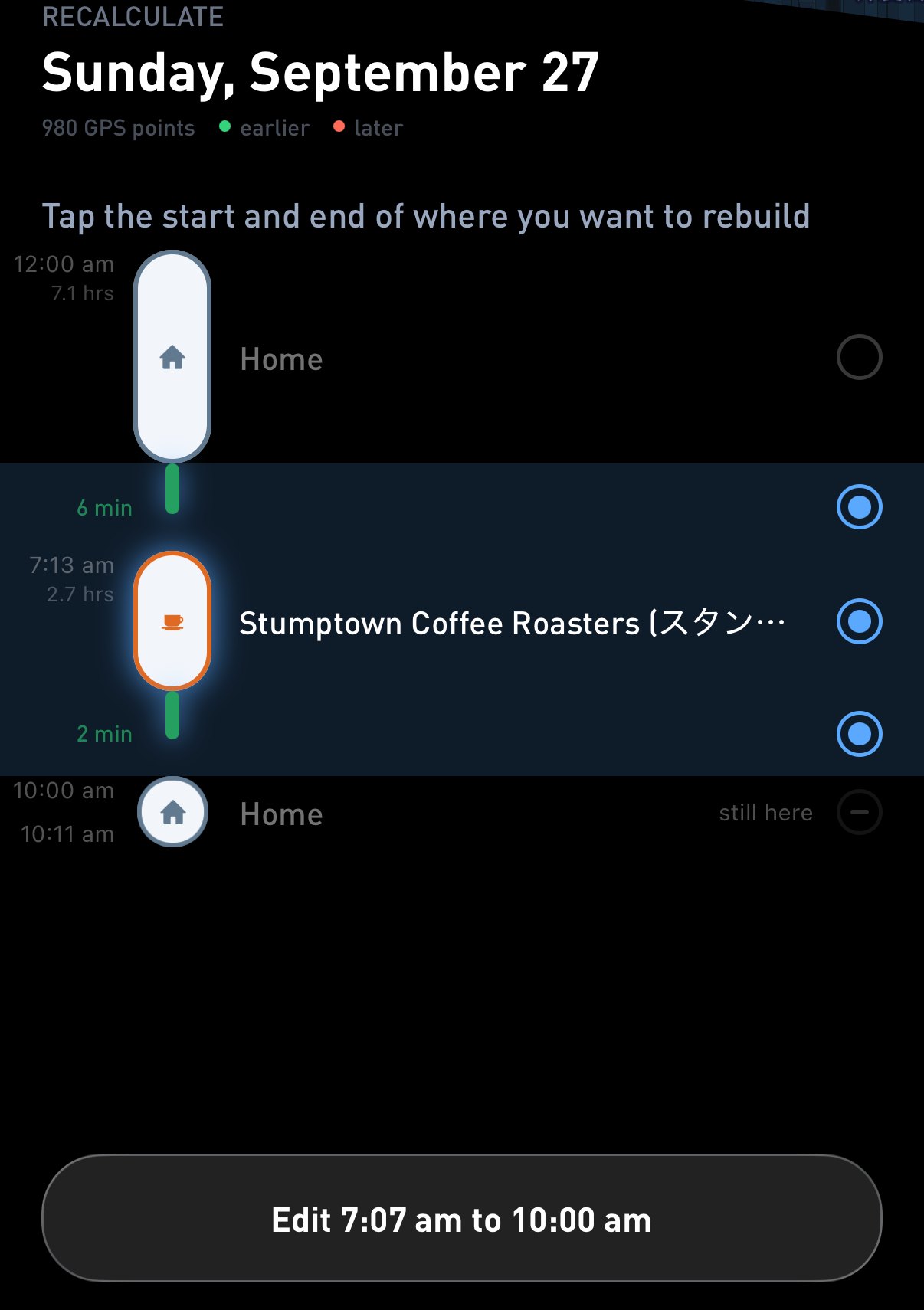
Tap the start and the end (1), then tap Edit (2).
2. Compare the versions. Places builds a few versions from the same GPS points, from More merged to More split. Swipe through the cards and choose the one that matches your day. Smart shows the day as it is now.
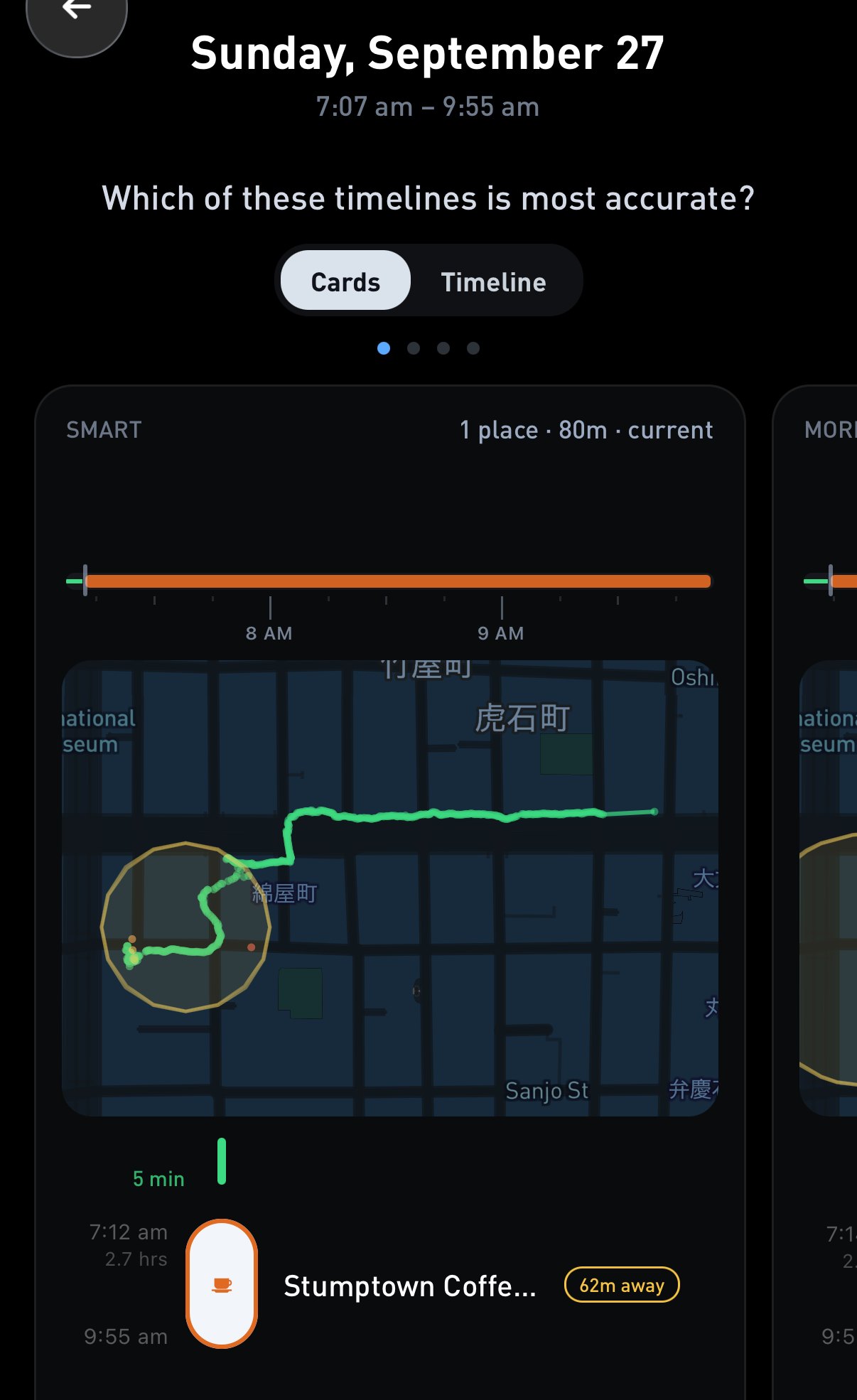
Switch between Cards and Timeline (1). Each card is one version of the stretch (2).
If none of the versions fit, the last card is Custom parameters. Set the Place radius and how long a stop has to last before it counts as a place, and the preview updates with every tap.
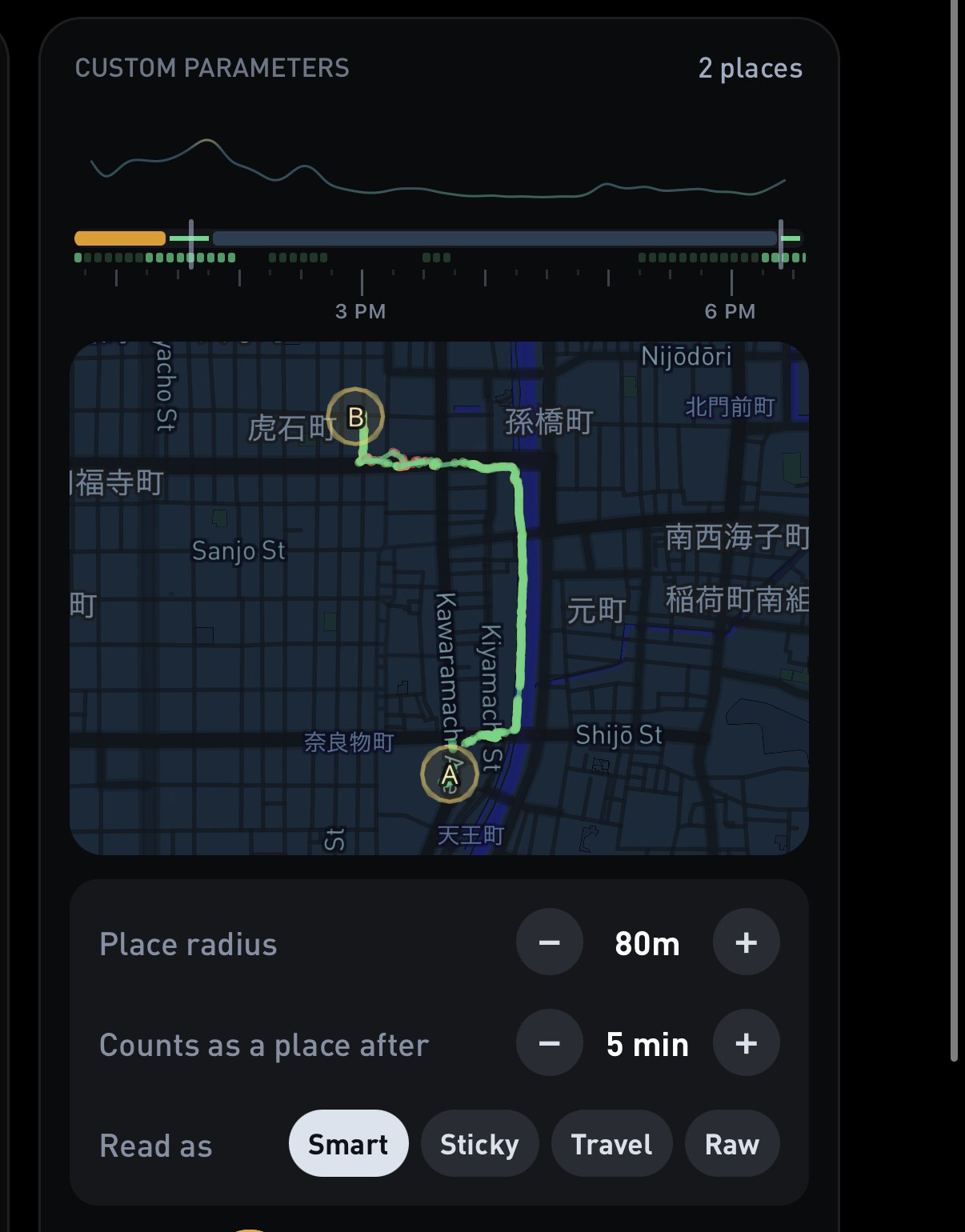
Place radius and how long a stop lasts before it counts (1).
For finer changes, switch to Timeline. Tap a stop to split it, tap a trip to add a stop, or drag a blue handle to move where a stop starts or ends.
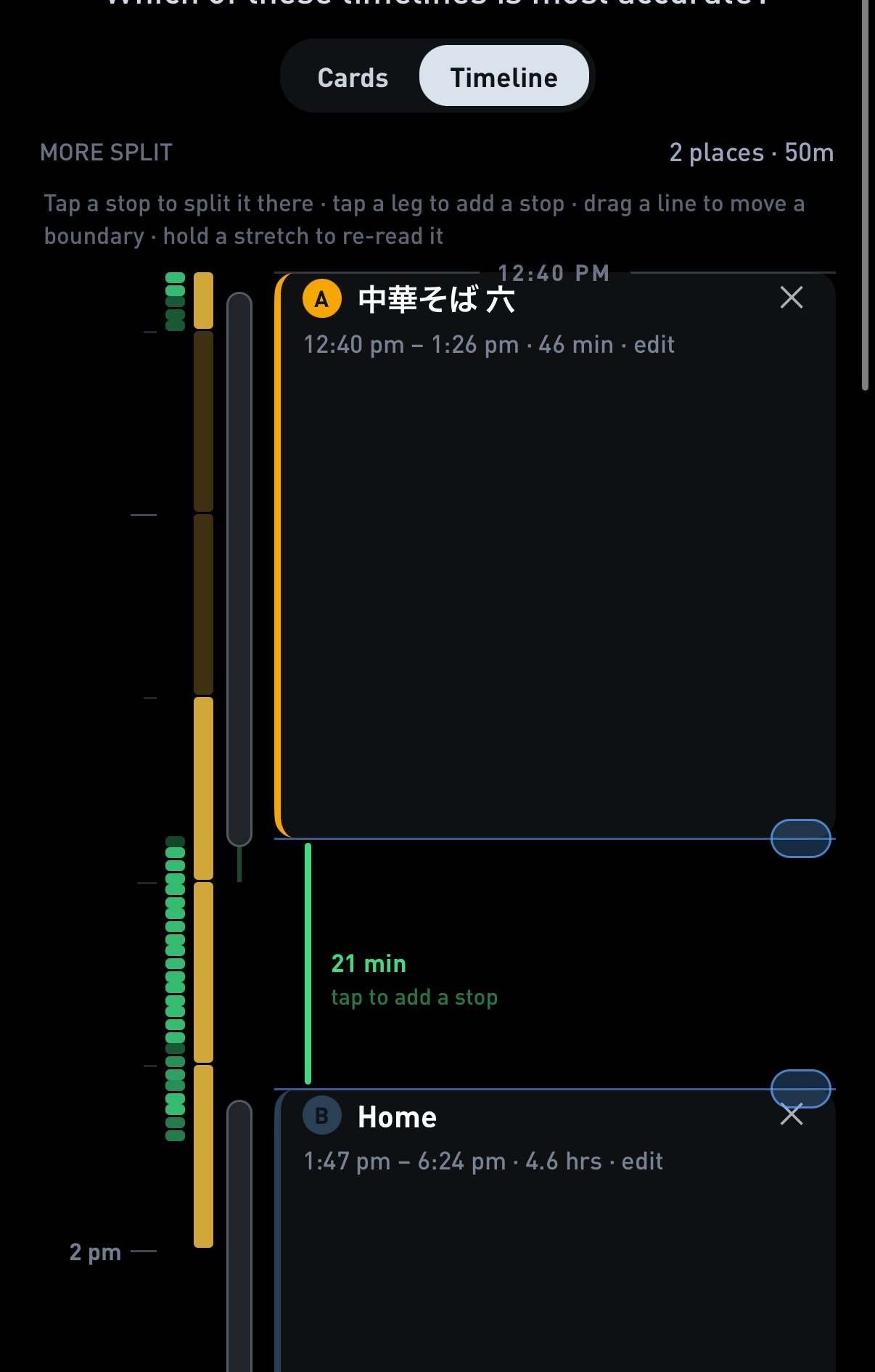
Timeline (1) shows the version as a timeline. Drag a blue handle (2) to move where a stop ends.
3. Check the names. Tap any visit to choose its place. New stops show as New place until you name them.
4. Save. Tap Continue, check the before and after counts of visits and travels, then tap Save changes.
Stops you are still at can’t be changed. Wait until you leave, then recalculate.
What changes when you save
- Only the stretch you picked changes. The rest of the day, and every other day, stays as it was.
- Inside that stretch, your visits and travels are replaced with the version you saved.
- Places keeps your names where it can. A rebuilt visit in the same spot as a place you already named gets that name again.
- If you set the travel type of a trip in that stretch by hand, check it after saving.
- There is no undo. If the result looks worse, run it again on the same stretch.
When it is available
Recalculate this day only shows when your phone has the GPS trace to rebuild from:
- The last 7 days. The raw GPS points stay in the app for a week, so older days can’t be recalculated.
- The app that is tracking. The trace stays on the phone and in the app that recorded it. If Gyroscope Health does your tracking, recalculate from Health. The tracking setup page shows how to check which app that is.
- Tokens. Each save uses 1 token, and the option shows while your balance is above 20.
Smaller fixes
For one quick change, the tools under Edit this visit are faster. Split this visit turns one stay into two, Rename this place changes its name or category, and Adjust position moves a place onto its actual spot.
If your days keep coming out split apart or blurred together, change your visit radius so future days come out right.