
Now that we have two iPhone apps, this question comes up a bit.
The places detection and coordination across apps is mostly automatic and should “just work™”, so not something you usually need to worry about.
Both the Gyroscope Health app and Gyroscope Places app now have the same places tracking capability. Either one can be used to track, and the other one will view the data.
You can view which one is active in the account menu, and if tracking is on it will show a green dot. From there you can also access advanced settings… including restarting tracking if it gets stuck, debug info, custom radius options, and more.
Here are screenshots in both apps showing where to find it in the menu (you may need to scroll down a little).
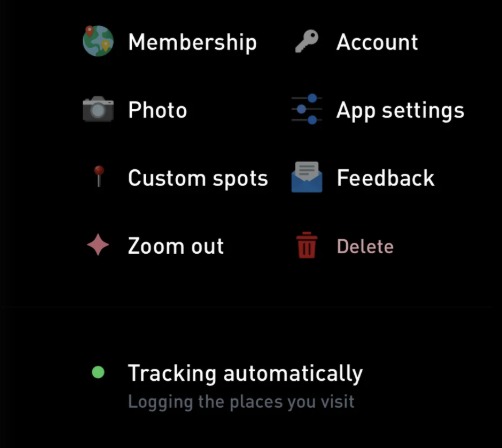
A green dot next to Tracking automatically means this app is doing the tracking.
What the menu row tells you
In Gyroscope Places:
- Tracking automatically, with a green dot. Places is tracking on this phone. Tap it for the tracking settings.
- Gyroscope Health is active. The Health app is tracking, and Places shows the same visits. Tap it to open Gyroscope Health.
- Places tracking is off. Neither app is tracking. Tap Turn on.
In Gyroscope Health:
- Places tracking, with a green dot. The Health app is tracking on this phone.
- Places tracking active. Your Places app is tracking. Tap it to open Places.
- Places tracking off. Tap Turn on.
Which app should track?
Either one. Both apps use the same tracking engine, and your visits sync to your account either way.
Whichever app turns tracking on first keeps it. The other app keeps its own tracking off and shows the same timeline, so the two never compete for your location.
If you only use one of the apps, let that one track.
Switching to the other app
- Open the tracking settings in the app that is tracking now. In Gyroscope Places, tap Tracking automatically in the account menu. In Gyroscope Health, open Places and tap the gear.
- Tap Stop tracking. Your current visit is saved, and nothing is deleted.
- Open the other app and tap Turn on next to its tracking row.
The advanced settings
The tracking settings screen is called Places tracking. It is the place to look when something seems off:
- A checklist of every permission tracking needs, with a fix button next to anything that is off.
- Restart tracking and a set of repair options for when tracking gets stuck.
- A debug map of your GPS points from the last day.
- Visit radius, which sets how far you can move before a visit ends.
- Default travel type, for trips at car speed.
Visit radius and Default travel type only show in the app that is tracking.
Permissions tracking needs
- Location set to Always, so visits log while the app is closed.
- Precise Location on.
- Motion & Fitness allowed, so the app can tell walking from cycling and driving.
- Notifications on. They help keep tracking running in the background.
The green dot does not check these permissions. If visits stop showing up, open the tracking settings and look at the checklist first.
Tips
- Avoid force quitting the app that is tracking.
- Open it every day or every few days, so new visits sync and you can name them while you remember.
- After reinstalling an app, go through the permissions again. The visit radius also goes back to 100 meters.
- If tracking goes quiet for three days, Places sends a notification that tracking may have stopped.