
Tracking usually runs on its own for months.
When it does get stuck, the fix is almost always in the tracking settings, and it takes a minute.
Signs something is off
- A banner on your timeline says Tracking stuck? with the time of the last location fix.
- You left a place hours ago, and your timeline still shows you there.
- No new visits have shown up today.
- A notification says your Places tracking may have stopped. It comes after three quiet days.
Open the tracking settings
1. Open the account menu with the button in the top right.
2. Scroll down past the main menu options until you see Tracking automatically, with the green dot. Tap it.
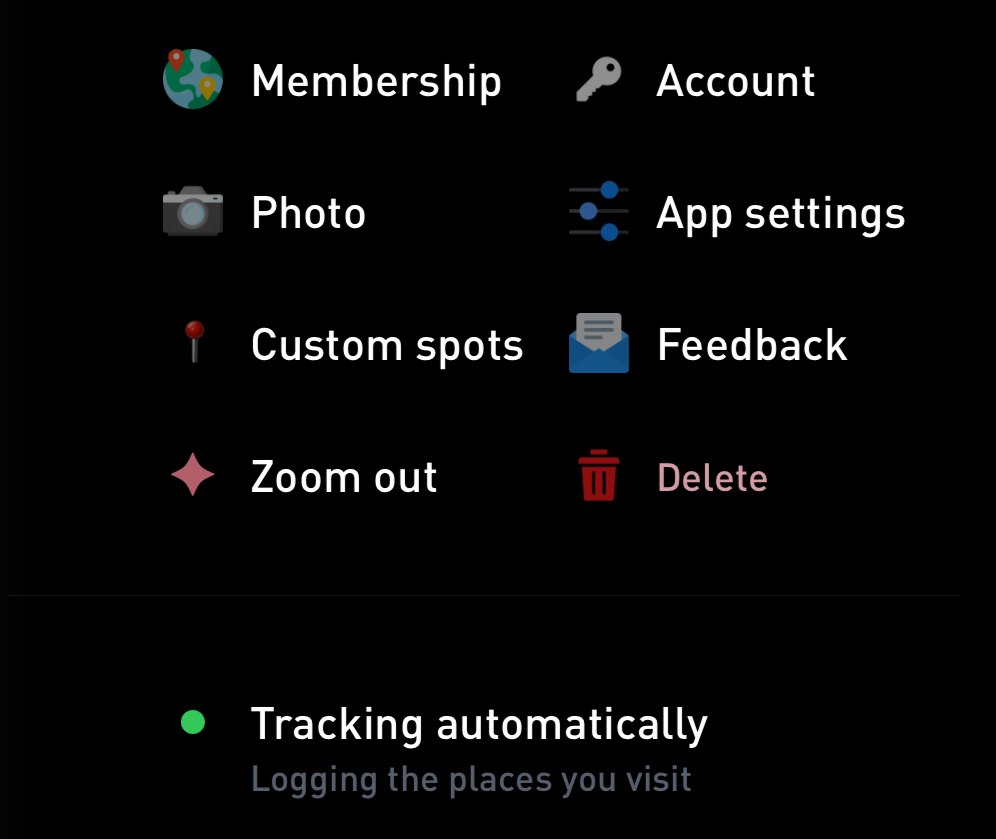
Below the main menu options, tap Tracking automatically (1).
3. The Places tracking screen opens. The top shows your permissions, the app status and a map of your GPS points from the last day.
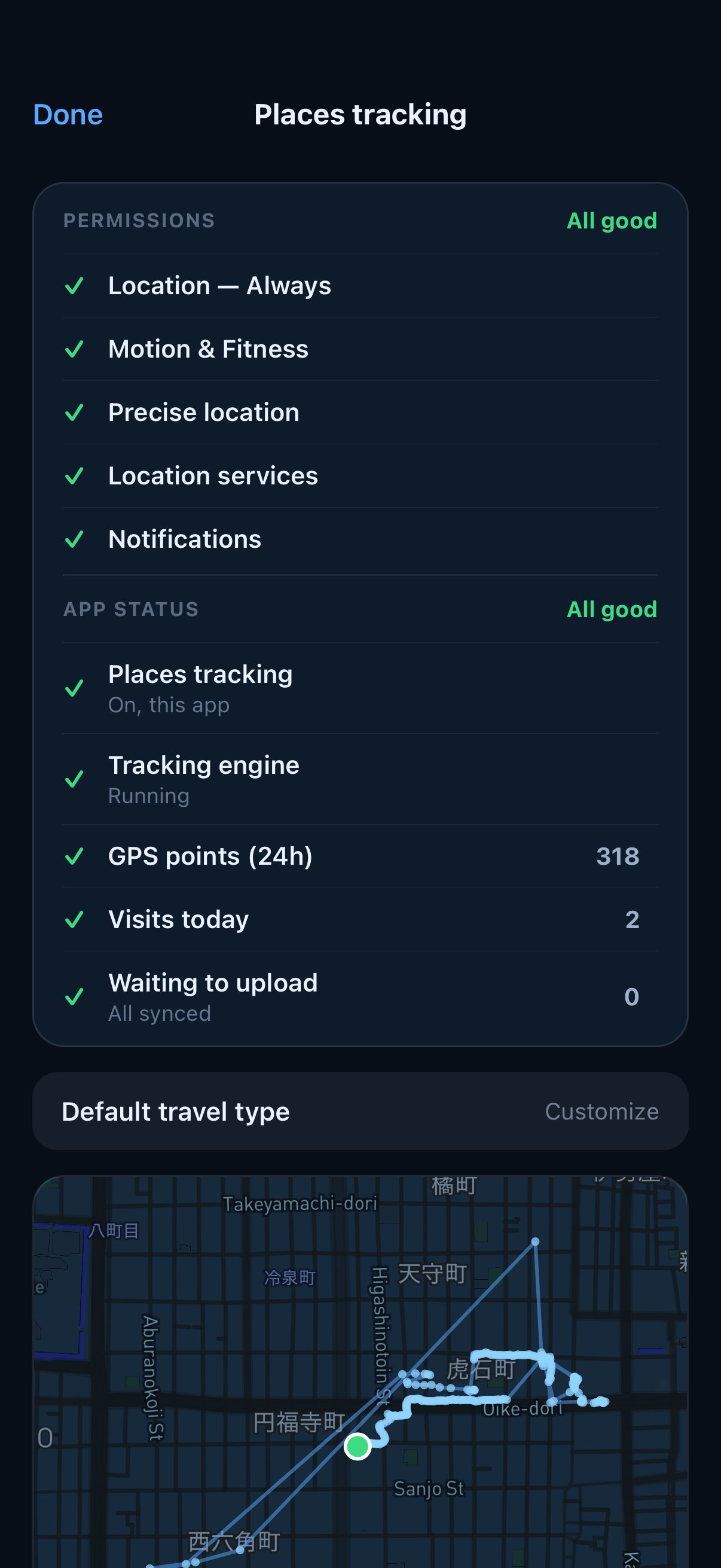
The top of the tracking settings.
If the menu row says Gyroscope Health is active, the Health app is doing the tracking and these settings live there. In Gyroscope Health, open Places and tap the gear to get to the same screen.
If tracking looks stuck, the banner at the top of your timeline opens the same screen.
The checklist at the top shows All good, or what needs attention. Tap Enable next to a permission to jump to the right spot in iOS Settings.
If the app you opened says the other app is doing the tracking, switch to that app first. The tracking setup page explains how the two apps share tracking.
Fixes, from lightest to strongest
Try these in order, and check your timeline after each one.
- Refresh now uploads anything waiting on your phone and updates the screen. Often the visit was recorded and only needed to sync.
- Upload now, next to Waiting to upload, sends visits that are stuck on the phone.
- I’m not here anymore appears when the app still thinks you are at a place you left. It ends that visit and starts a new one where you are.
- Restart tracking appears when tracking is not running or looks stuck. It restarts location tracking and gets a fresh fix.
- Advanced repair options opens a few more. Recheck & restart runs a full check and restarts place detection. Fix my location keeps your current visit and moves it onto the spot where you really are.
- Reset & reboot is the last resort. It clears the tracking data stored on this phone and starts clean.
Tap Refresh now before Reset & reboot. History already synced to your account stays, but anything still waiting on the phone is cleared.
Still stuck?
When something in the checklist is flagged, a Send to support button appears. It shares your tracker status, settings and recent GPS trace with the team.
Then message us from the app, or email support@gyrosco.pe with the date that looks wrong.
Keeping it running
- Keep Location set to Always, with Precise Location, Motion & Fitness and notifications on.
- Avoid force quitting the app that is tracking.
- Low Power Mode can pause background tracking, so check your timeline after long stretches of it.
- Open the app every day or every few days, so new visits sync.