
Places tracks on its own, so most days you never need to open the settings.
When a day looks thin, visits keep splitting apart, or you just want to check that everything is running, the Places tracking screen is where to look. It shows every permission tracking needs, what the tracking engine is doing right now, and the tools to fix it.
Opening it
1. Open the account menu with the button in the top right.
2. Scroll down past the main menu options until you see Tracking automatically, with the green dot. Tap it.
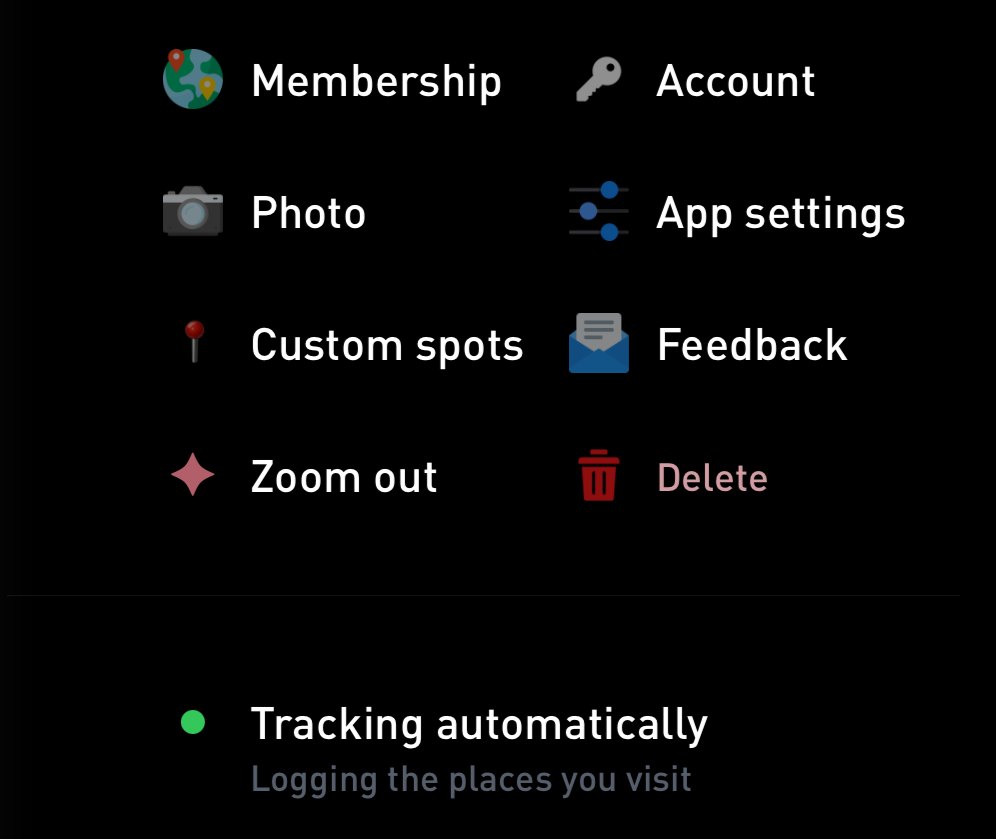
Below the main menu options, tap Tracking automatically (1).
3. The Places tracking screen opens.
If the menu row says Gyroscope Health is active, the Health app is doing the tracking and these settings live there. In Gyroscope Health, open Places and tap the gear to get to the same screen.
When tracking looks stuck, a banner at the top of your timeline opens the same screen.
Most of your other settings, including Default travel type, are in App settings, in the main menu options.
The checklists
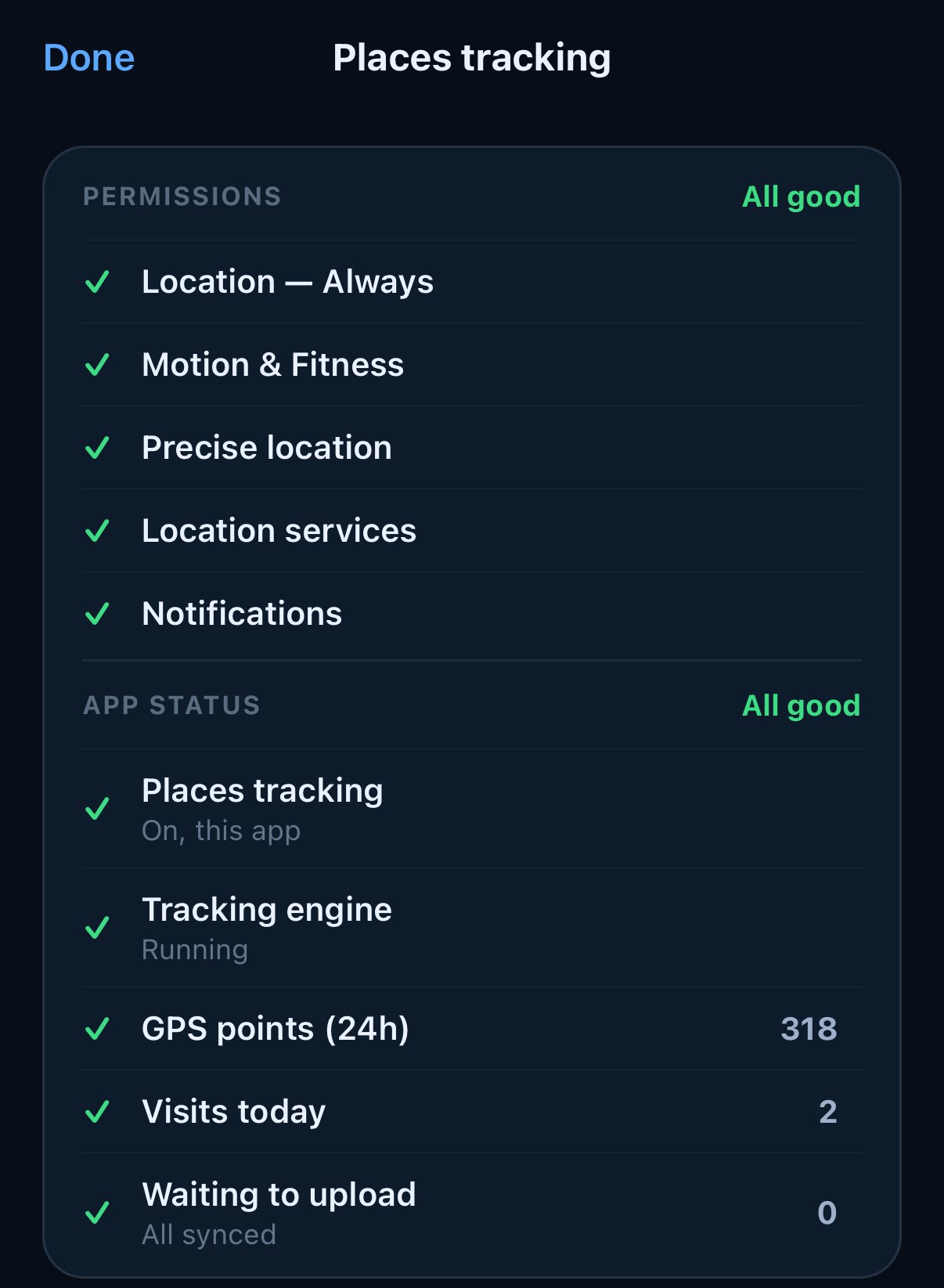
Permissions (1) and App status (2). Both show All good.
1. Permissions shows what tracking needs from your phone: Location set to Always, Motion & Fitness, Precise location, Location services and Notifications.
2. App status shows whether tracking is on in this app, whether the engine is running, how many GPS points came in over the last 24 hours, your visits today and anything still waiting to upload.
When everything is set up, both show All good. Anything that needs attention gets a fix button in its row, like Enable, Restart or Upload now.
Travel type and the map
Below the checklists, Default travel type sets what trips at car speed are logged as. Tap Customize to change it, or find it in App settings. The default travel type page explains how it works.
Under that, a map shows your GPS points from the last day, your current visit and how accurate your latest location is. Current place shows whether you are in a visit, and since when.
Visit radius and repairs
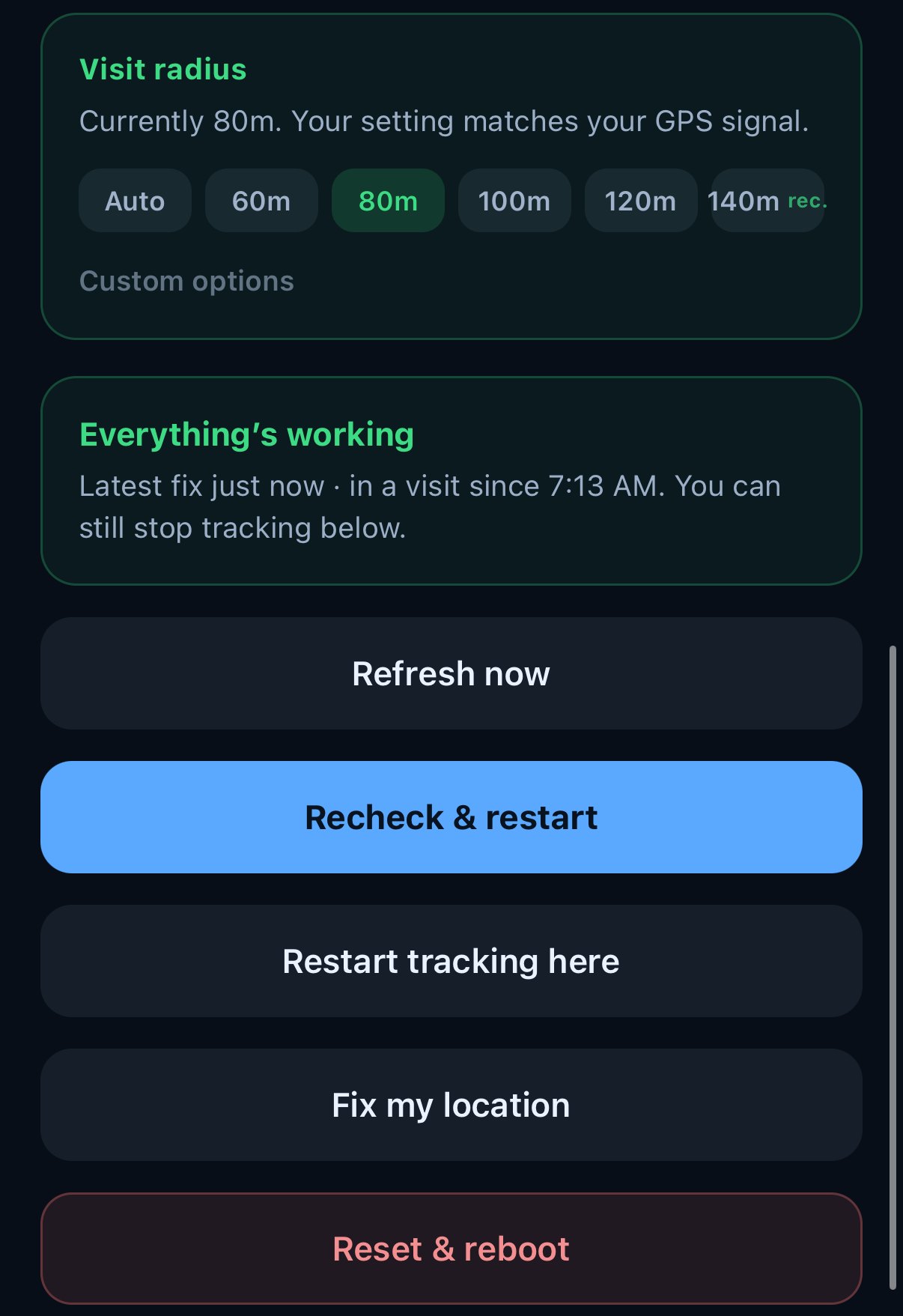
Visit radius (1), the status card (2), Refresh now (3) and the repair options (4).
1. Visit radius sets how far you can move around before a visit ends. The size marked rec. is the one Places suggests, based on how much your GPS wandered while you stood still. Custom options opens larger sizes, up to 500m. The visit radius page has the full detail.
2. The status card shows how tracking is doing overall. A green Everything’s working means tracking is running and the latest GPS point is fresh.
3. Refresh now updates the screen and uploads anything waiting on your phone.
4. The repair options open from Advanced repair options:
- Recheck & restart runs a full check, uploads pending visits and restarts place detection.
- Restart tracking here ends the current visit, which stays saved, and starts a fresh one where you are now. Use it when Places thinks you are still somewhere you left.
- Fix my location keeps your current visit and moves it to your current location. Use it when a visit is pinned a few blocks from where you really are.
- Reset & reboot clears the tracking data stored on this phone and starts clean. History already synced to your account stays. Try it last.
The tracking stuck page walks through them in order.
Stopping tracking
At the bottom, Stop tracking ends the current visit and stops logging places on this phone. The visit is saved and nothing is deleted, so you can turn it back on any time.
Only in the app that tracks
Visit radius, Default travel type and the repair options only show in the app that is tracking. Open the screen in the other app and it points you to the one that is.