
Places widgets put your day on your Home Screen. You can see where you are right now, the city you are in and the places you have been today, without opening the app.
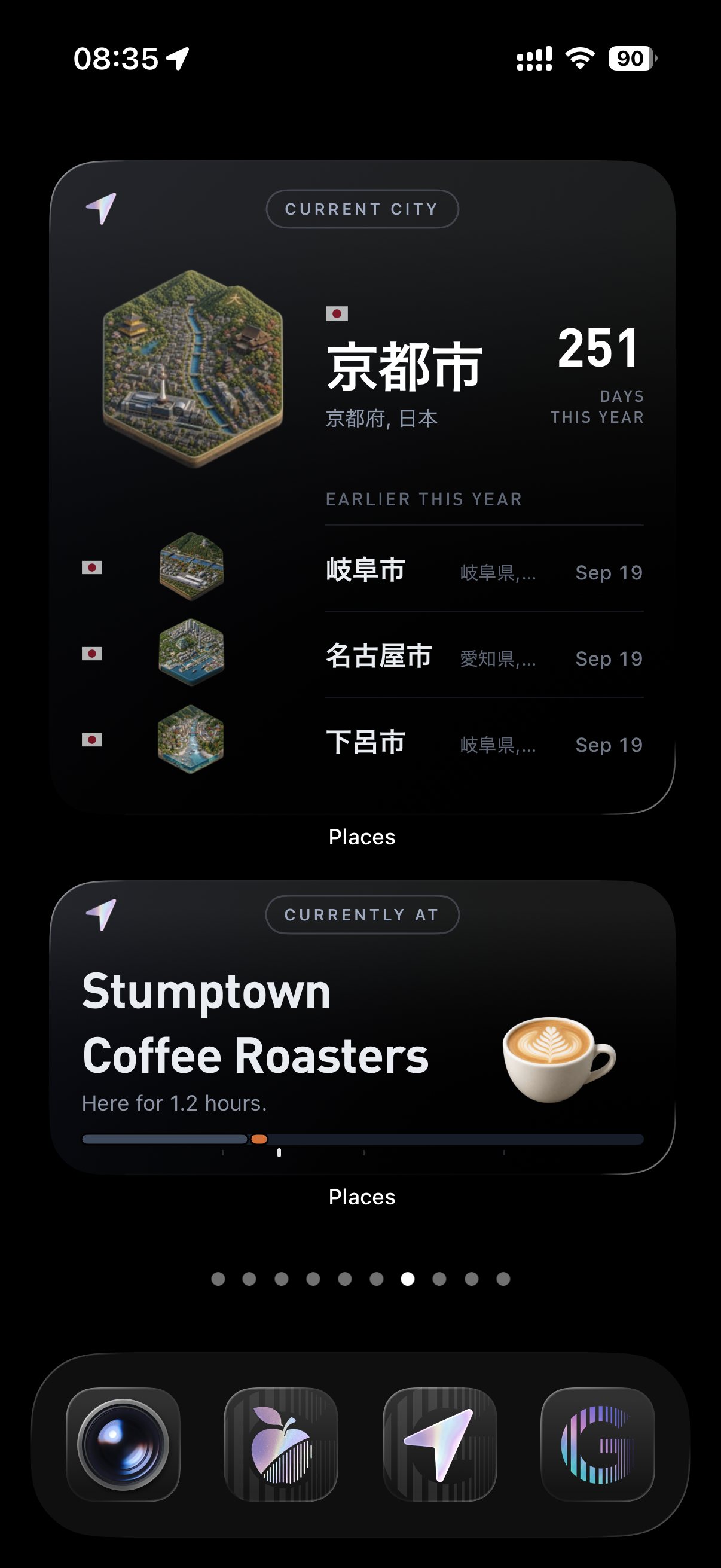
Two Places widgets on the Home Screen.
Adding a widget
- Touch and hold an empty spot on your Home Screen until the apps start to jiggle.
- Tap Edit in the top left corner, then Add Widget.
- Search for Places, or scroll through the list of apps and tap Places.
- Swipe left and right to see each widget and size. Tap Add Widget on the one you want.
- Drag it to where you want it on your screen, then tap Done.
To stack widgets, drag one on top of another of the same size. Then swipe up and down on the stack to flip between them.
The widgets
There are five, and each comes in small, medium and large. A bigger size keeps everything from the smaller one and adds more.
- Current Place shows where you are and how long you have been there. Medium adds a short summary and a strip of your day. Large adds the places you have been today. When Places finds a new spot, the widget asks you to name it.
- City shows the city you are in with its city tile. Medium adds the region and your days there this year. Large adds your three most recent cities.
- Today shows your places, steps and a strip of your day. Medium adds your time moving. Large adds the list of today’s places.
- Motion shows your total time moving today, split into bars by how you moved. Large adds your distance, your trips and a strip of the day.
- Passport shows your flags and your country and city counts. Medium adds the city you are in. Large adds your recent cities.
Tap a widget to open that part of Places.
If a widget is blank
Widgets show what Places has recorded on your phone. If one is blank right after you add it, open Places once and it fills in.
If it still stays empty, check that tracking is on. The Places settings guide shows where to look.