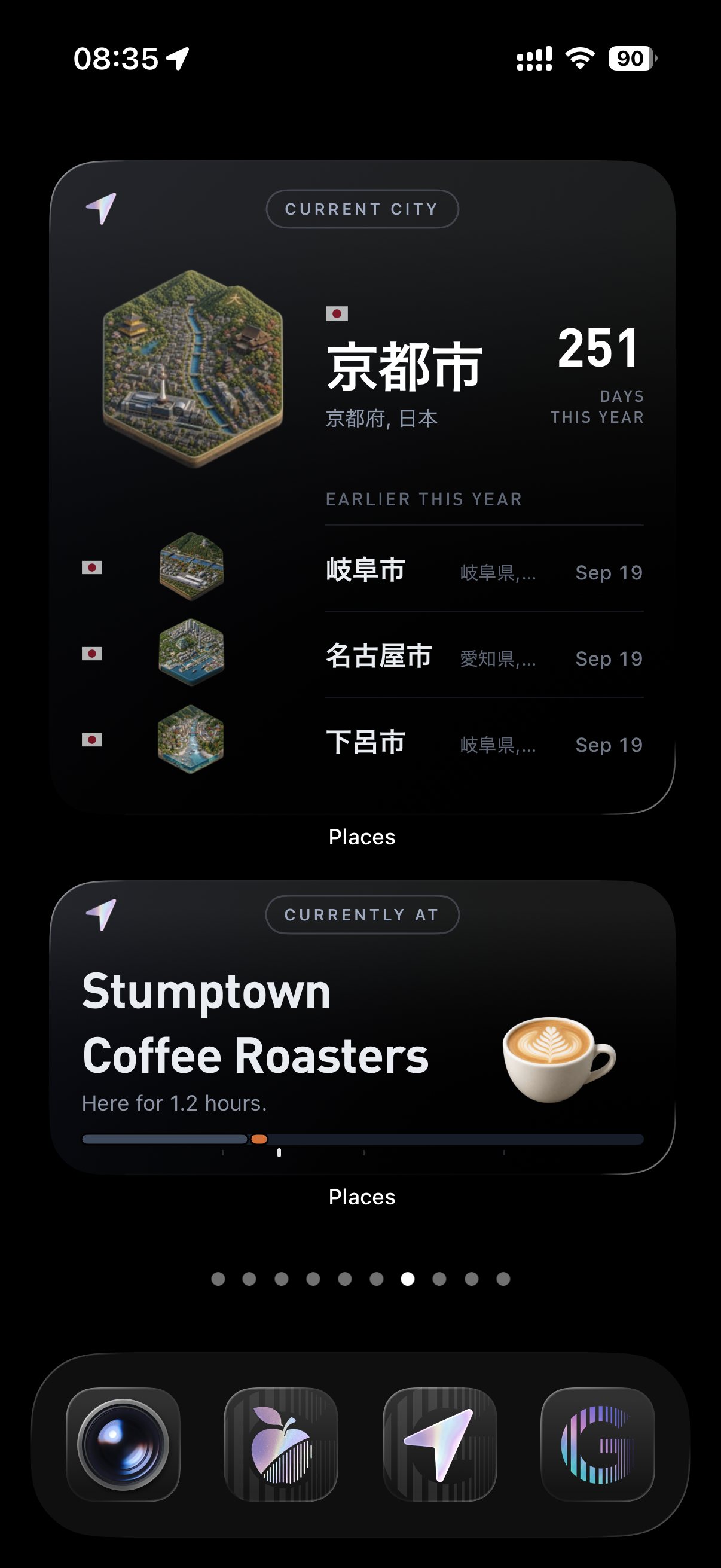
Widgets are small windows into an app that live on your Home Screen. They update on their own, so you can check something at a glance without opening the app. Places widgets put your day there: where you are right now, the city you are in, your passport, and the places and trips of your day.
Most of them come in a small and a bigger size. Setup is simple: choose the widget you want and position it on your Home Screen. You can have several widgets on a page to see different things, or use the extra large Today widget to make it your full view of the day.
Adding a widget
Adding a widget works the same way for every app on iPhone.
1. Touch and hold an empty spot on your Home Screen until the apps start to jiggle. Then tap the button in the top left corner.

The apps jiggle. Tap the button in the top left corner (1).
2. Tap Add Widget. The widget gallery opens with a search field at the top. Search for Places, or scroll down the list of apps and tap it.

Tap Add Widget (2), then find Places.
3. Pick a widget and a size. Swipe left and right through the Places widgets. Each widget appears once for every size it comes in, and the dots under the preview show where you are. When you see the one you want, tap Add Widget.

Swipe through the sizes (3) and tap Add Widget (4).
4. Place it. Drag the widget where you want it, then tap the check mark in the top right corner to finish.
From the app icon
You can also turn the Places icon into a widget. Touch and hold the icon, then tap one of the size icons along the bottom of the menu. To turn it back into an icon, touch and hold the widget and pick the app icon size.

The size icons sit at the bottom of the menu (1). Image: Apple Support.
The Places widgets
There are five, each in small, medium and large, plus Today in extra large on iOS 27. Here is what each one shows.
Today
Today is your day so far in one glance: how many places you have been to, your steps and how long you spent moving. A strip along the bottom fills in hour by hour in the colors of the places you were, so you can see the shape of the day. The large size turns it into a list of every stop and how long you stayed, and on iOS 27 it becomes a full timeline.

Current Place
Current Place is about right now. It shows where you are, with the art for that kind of place, and how long you have been there, and it keeps counting while you stay.

City
City shows the city you are in, drawn as its own city tile, with the region and your days there this year. The large size adds the last three cities you visited, so a trip shows up as a short trail of tiles.

Motion
Motion is how you got around today. It adds up your time walking, driving, cycling or on transit, with a bar for each. The large size puts it in a sentence with your distance and number of trips, then lists each trip from place to place.

Passport
Passport is your travel record on the Home Screen: a flag for every country you have been to, with your country and city counts. The bigger sizes add the city you are in and your days there this year, and the large size adds your recent cities.

New in iOS 27: Today in extra large
iOS 27 adds an extra large widget size, taller than large. Today uses it for a timeline of your whole day. A bar runs down the left side with the hours marked, each stay filled in, and an arrow at the current time.
Next to it you get where you are right now and how long you have been there, your places, steps and time moving, and the list of today’s places. To add it, pick Today in the widget gallery and swipe to its last size.

Tips for your Home Screen
Which widget to pick
Start with what you check most. Current Place and Today cover the day you are in, Motion shows how you got around, and City and Passport are for travel.
| Widget | Shows | Sizes | Tap opens |
|---|---|---|---|
| Current Place | Where you are now and how long you have been there | S, M, L | Today |
| Today | Your places, steps and time moving today | S, M, L, XL | Today |
| City | The city you are in, with its city tile | S, M, L | Passport |
| Motion | Your time moving today, by how you moved | S, M, L | Today |
| Passport | Your flags, countries and cities | S, M, L | Passport |
You can stack widgets
To stack widgets, drag one on top of another of the same size. Then you can swipe up and down on the stack to flip between them. This lets you put in multiple widgets in the same limited spot.
Customized colors
The widgets follow the look you pick for your Home Screen — regular, dark mode, or even clear.
In edit mode, tap the button in the top left corner, then Customize. Dark and the default look will be the easiest to read. Clear lets the widgets blend into your wallpaper, so readability will vary depending on your background, and some details


If a widget is blank
Widgets show what Places has recorded on your phone. If one is blank right after you add it, open Places once and it fills in.
If it still stays empty, check that tracking is on. The Places settings guide shows where to look.
We hope you’ll enjoy customizing your home screen with combining Places, your custom phone backgrounds, app layouts, and real-life adventures. And if you make a combo you like, post it and tag us on social media—we’d love to see what you create!